 Plushify
Once you have created your project, you might want to show it to the world. With Plushify Pro, you can create unique sharing links that you can send to friends, customers, or manufacturers. You can disable certain functionality, so that you can share the project without exposing the pattern or let users change anything about the project.
Creating a share Pro Only
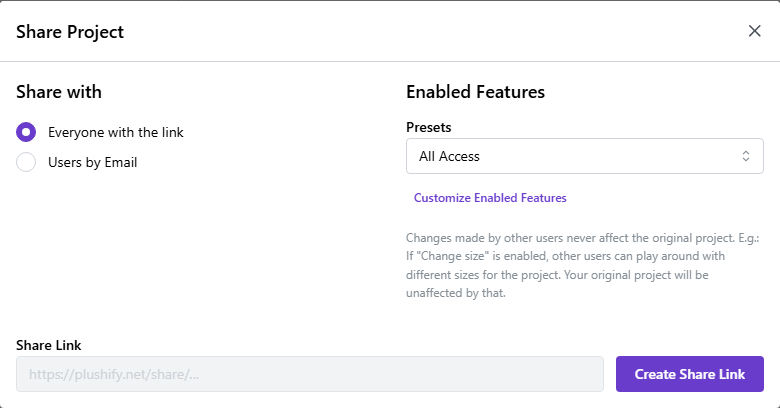
To create a shareable link for your project, go to the "Overview" section in Plushify and click on the "Share Project" button. This opens the sharing dialog.
When you create a shareable link, users can see your project by accessing the link. Depending on which permissions you set on the share, they might be able to change properties of the project. However, any changes users make using the share link are for that user only and never affect your project. So if you send a share link to another user and they change the size of the project, they can print the pattern with the changed size, but your project retains its original size.
If another users changes properties within a shared project, those changes are not persisted and if they open the link later, they will see the original properties of the project.
If enabled, users can create their own copy of the shared project. This allows them to persist the changes they make to the shared project in their own Plushify account. Features that are disabled in the shared project will also be disabled in their local copy - i.e. if they cannot change the size of the project in the share view, they also cannot change the size if they have created a local copy.
Restricting Access
When you share a project, Plushify generates a unique, unguessable link to the project. By default, everyone who knows the link can access your share - so you can just send the link to other people and they can access the project without having to create a Plushify account themselves.
If you want to restrict access to the share, you can also specify a list of email addresses for users who should have access to the project. In that case, people who are not on the list cannot access the project, even if they have the link. Users who have access to the project need to be logged in to their Plushify account with the same email that you enter in the sharing dialog.
Note that you still have to give them the link to the project for them to be able to find it. Plushify does not automatically send emails when you add or remove someone from a share.
Setting Permissions
You can specify which features users should have access to when they access your project via the share link. You can choose from a list of different presets:
- All Access
- This enabled all Plushify features for this share. Users can do anything, including printing the pattern, downloading the model, saving a local copy and re-sharing their local copies.
- Pattern Access
- This preset is ideal if you want to give another user access to the pattern. They are able to adjust the pattern to their needs by changing the size or seams, but cannot download the model or create their own share of the project.
- Pattern Preview
- This preset is ideal if you want to give another user a preview of what the pattern is, without actually giving them the pattern (e.g. as a preview before selling a pattern). Users accessing the share can see how many pieces the pattern has and which fabrics and detail images are used, but cannot access the pattern pieces.
- Item Preview
- This setting is ideal if you want to give another user a preview of a finished product, e.g. if you are working on a commission and want to showcase the chosen fabrics and size.
- Custom
- This allows you to individually enable and disable functionality of Plushify to create a permission set that suits your individual needs.
You can update the permissions and access settings even after you have created a share. Changes to permissions affect the current share link, but not any copies that have been created before the change. E.g. if the original permissions allowed changing the seams and making a copy, users who made a copy can change the seams in their local copy even after you remove this permission from the share.
Revoking a share
You can revoke a share at any time, even after your Pro subscription expires. When you revoke a share, it will no longer accessible under the previous share link. You can create a new sharing link after revoking a share, but the new link will have a different URL. It is not possible to use the link from a previously revoked share.
And that's it! We hope you find Plushify useful and are able to create many wonderful projects with it. If your question is not answered in this guide or in the accompanying FAQ section, please send us an email and we will help you out!
Back to Plushify