 Plushify
In order to use Plushify and create sewing patterns from 3D models, you need to create an account. An account allows you to access your created projects and patterns from any device.
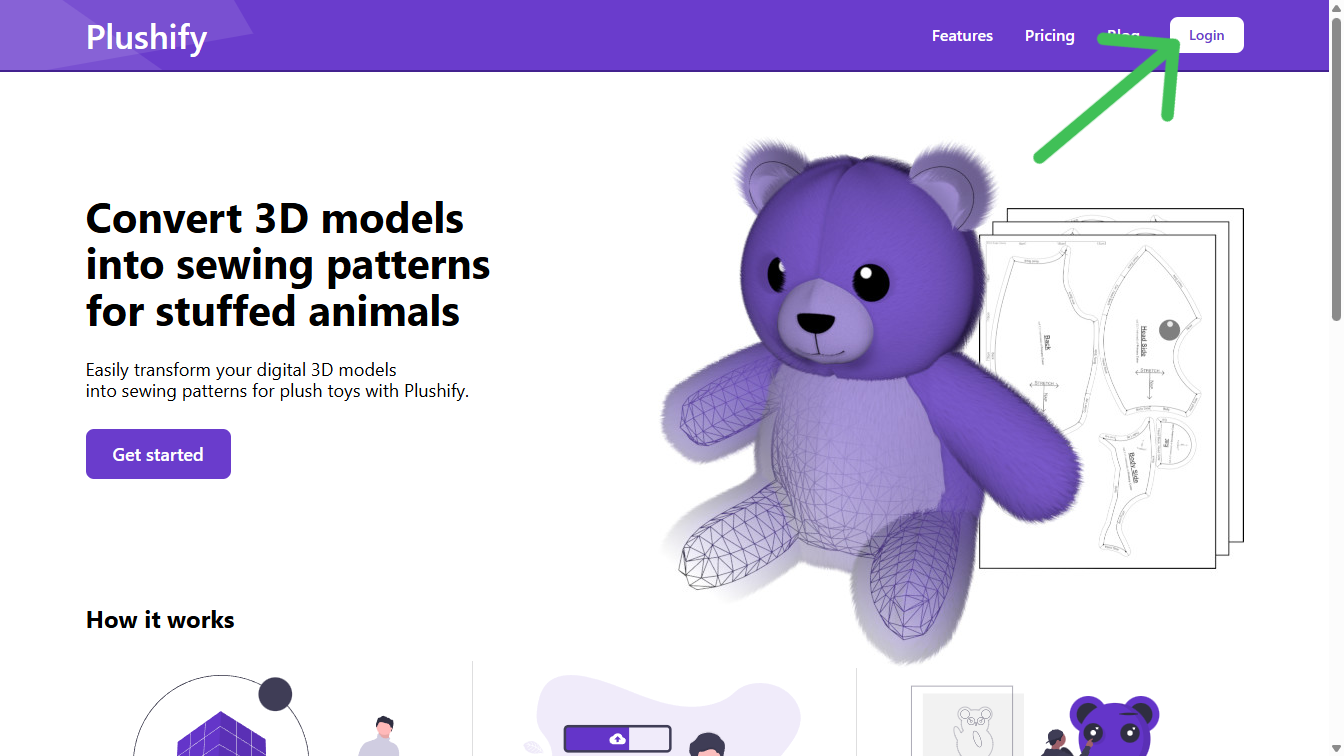
Creating an Account
To create an account, click on the Login button in the top right corner of the screen. This opens a dialog where you can either log in with your Google account, or create a Plushify account using your email address.
Using your Google Account
You can access Plushify using your Google account. This is the recommended way as you don't have to set or remember a password. Simply click on the "Login With Google" button and grant Plushify access. Plushify will receive your name and email address from Google.
Using an Email account
If you don't have or don't want to use a Google account, you can also login with your email. To do so, click the "Continue With Email" button. If you already have a Plushify account, you can enter the email and password here. If you do not yet have an account, click on the "Don't have an account? Register" button at the bottom of the dialog and fill in your name, email, and desired password in the form. Once you are done, confirm that you are a human and click the "Register" or "Login" button.
After you create an account with Plushify, you have to verify your email address. This is required to prevent typos and to ensure you can always access your account later. After you register, an email is sent to the address you specified. Clicking on the link in the email will automatically verify your account. After that, you can login with the password you set during the registration.
If you ever forget your password, you can request a reset link by clicking the "Forgot your password?" button in the login dialog. A reset link will be sent to your email - simply follow the instructions.
Change Login Method
You can associate both an email login and a Google login with your Plushify account, as long as both accounts use the same email address.
Accessing an email account with Google Login
If you already have a Plushify account using your gmail address, you can simply use the "Login With Google" method. Your projects will automatically show up.
If your existing Plushify account uses a different email than your Google account, change the email of your Plushify account to the one you use for the Google account before using the "Login With Google" functionality.
Accessing a Google login account with email
Plushify accounts using email login need a password. To set a password for your existing account, log out of your account, click on the "Login" button, "Continue With Email" and then click "Forgot your password". Enter the email address of your Google account and follow the instructions in the email to set a password for your account. After setting the password, you can login with your Google email address and the password.
Updating your account details
After creating and logging in to your account, the "Login" button in the top right of the page is replaced with an "Account" menu. From there, you can create new projects, manage your account, access the User Guide, and log out.
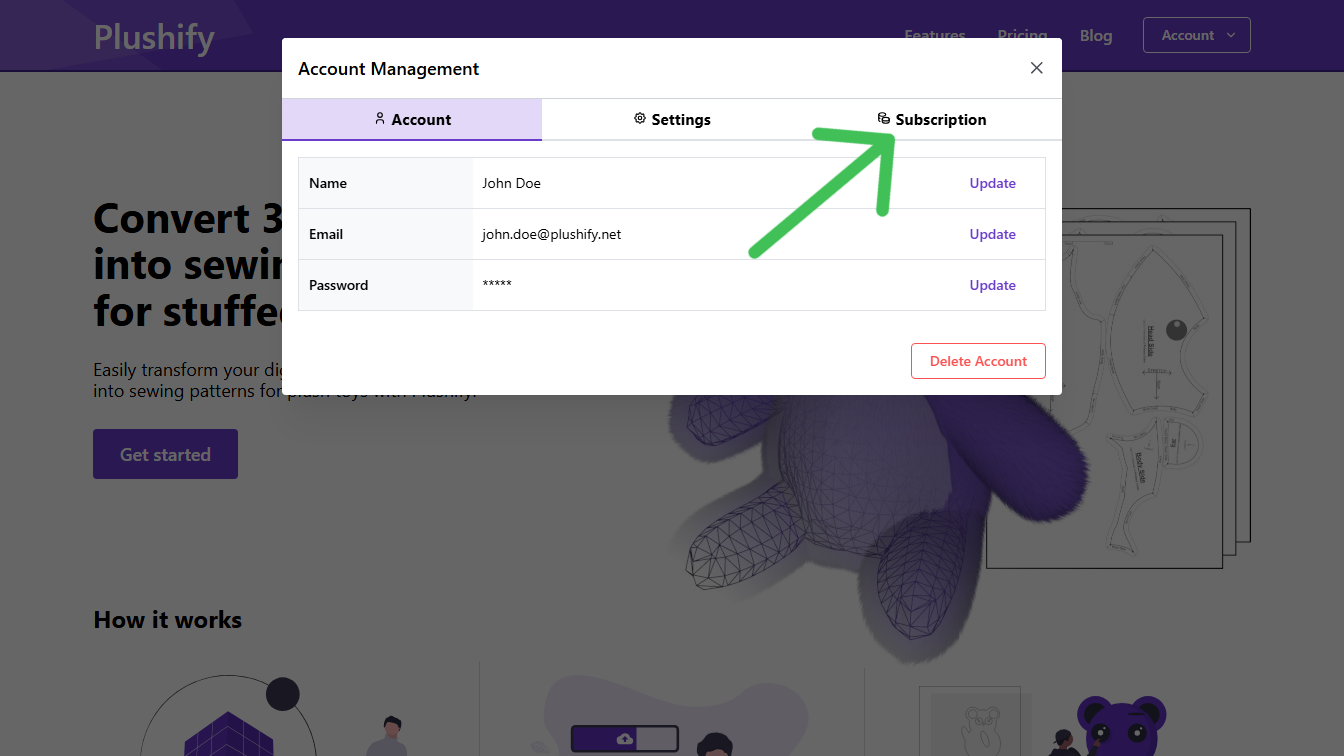
To update your account details, click on the "Your Account" menu entry. Depending on your login method, you can update the following fields:
- Name: The name Plushify will use in communications with you. It will also be used for invoices if you subscribe to Plushify Pro.
- Email: Can only be changed for email based logins. To update your email, you need to verify the change with both your old and new email address, so follow the instructions in the emails send during the update process to ensure the change is done correctly.
- Password: Can only be changed for email based logins.
- Social Sign-In: If you have both a Google and Email login, you can unlink the Google login to allow changing the email address of your account.
Subscribing to Plushify Pro
When you first sign up to Plushify, you are automatically assigned the free plan. This plan comes with some restrictions, limiting how many projects you can create, which export options are available, and allowing only personal, non-commercial use.
If you want to unlock all features of Plushify and use the patterns commercially, you need to sign up for the Plushify Pro plan. To upgrade to Plushify Pro, you can either go to the "Subscription" tab in your account menu (the same dialog where you can change your name, email, and password) or do it directly from the pricing page if you are logged in.
Plushify Pro is a recurring subscription, available with monthly or yearly billing. Your plan will automatically renew, but you can cancel at any time. If you cancel, you will retain all Pro features until the end of your current billing period.
When you subscribe, all your payment information is securely handled by our third-party payment processor Stripe. Plushify does not store or process your full payment card details. Plushify only receives a confirmation of your payment and information necessary to manage your subscription status.
Once subscribed, you immediately get access to all features of Plushify Pro.
Managing and Canceling Your Subscription
To manage your subscription, e.g. to update your card details, download your invoices, or cancel your subscription, go to "Account -> Your Account -> Subscription" and click on the "Manage Subscription" button. This takes you to our payment processor Stripe where you can see your current subscription status, update your payment information, get invoices and cancel your subscription.
Deleting Your Account
If you want to delete your account, head over to the Account dialog and click on the "Delete Account" button. This starts the account deletion process. After confirming the request by clicking on the link sent to you via email, you can permanently delete your account as well as all projects and data stored for your account in Plushify.
Please note that deleting your account is permanent and irreversible. Once deleted, neither your account nor its data can be restored. You will also lose access to any remaining Pro plan features and your subscription (if you have one) will automatically be canceled. You will not receive a refund for any remaining Pro plan duration.
Once you have created your account and logged in, you can upload your .obj file.
Next chapter: Importing a Model in Plushify